How to Lock a Google Doc from Editing — Permissions Guide
A Google Doc does not need a mysterious “lock” switch to stop edits. The dependable approach is to control who has access and what role each person receives, then tighten sharing options for the document you actually own.
This guide explains the native choices first, including read-only sharing and user-specific access, before covering safer password alternatives for exported copies.
DocLock Editorial TeamUpdated August 202618 min read
Quick answer
To lock a Google Doc from editing, change the people who should not edit from Editor to Viewer or Commenter in the Share dialog. If a link is broadly shared, change General access to Restricted or set the link audience and role deliberately. Google Docs does not provide a normal per-document password box for the live cloud document, so password protection usually means controlling Google account access or exporting a copy and protecting that file separately.
In Google Docs, “locking” usually means limiting collaboration rights. A Viewer can read, a Commenter can read and leave comments, and an Editor can change the document. The owner decides which role each collaborator gets and can narrow how a shared link behaves.
The important distinction is between stopping edits and adding a password. Native sharing controls solve the first problem. They do not turn a live Google Doc into a password-encrypted file.
Why this matters
Use the least powerful role that still lets each collaborator do their job. That reduces accidental edits without making normal review or viewing harder than necessary.
Direct answers
What people mean when they ask how to lock a Google Doc
These common searches sound similar but lead to different settings. Pick the outcome you actually need.
How to Lock Google Doc from Editing
Change unwanted editors to Viewer or Commenter, and review General access so the document is not editable through a broadly shared link.
There is no standard password field for a live Google Doc. Use Google account-based sharing for the live file, or export a copy and protect the downloaded file separately.
If your real goal is controlled access rather than literal encryption, Restricted sharing is usually the cleaner solution because each approved person signs in with their own account.
Choose an intent to jump to the most useful part of the guide.
Before you start
Requirements and checks before changing access
Permission changes are simple, but the person making them needs enough control over the document or its parent folder.
Owner or manager accessYou need authority to change sharing settings.
Correct documentConfirm you are editing permissions on the intended file, not a copy.
Collaborator listKnow who should edit, comment, or only view.
Folder contextRemember that a file can inherit access from a shared folder.
Native method
How to Lock a Google Doc from Editing
The safest first choice is Google’s own permission model. It keeps the document in its normal collaborative environment while removing edit rights from people who do not need them.
Open the document and choose Share. Use the Share control in the upper-right area of Google Docs. Confirm the title so you do not change the wrong file.
Review every person with access. For anyone who should not alter the document, change the role from Editor to Commenter or Viewer.
Review General access. If the file is available through a link, choose a narrower audience where possible. If broad link access is necessary, make the link role Viewer unless commenting is required.
Open sharing settings for extra restrictions. When available to you, stop editors from changing permissions or sharing, and restrict download, print, and copy for viewers and commenters when that is appropriate for the document.
Save or close the dialog, then test. Reopen sharing settings to confirm the roles. For an important document, test with a non-owner account before treating the change as complete.
Where it works well
Shared policies and final drafts
Documents that still need comments
Teams already using Google accounts
Links that should remain viewable
Where it is not enough
You need encryption of an offline copy
A file inherits broader access from a parent folder
You must distribute a file outside Google Docs
You require a literal file password
Important limitation
Blocking editing is not the same as preventing every possible copy of the information. Someone with legitimate viewing access can still read the content, and no sharing setting can prevent a person from recording information they can see.
Read-only sharing
Make a Google Doc Read-Only
For a document that should be readable but not editable, Viewer is the natural role. It is especially useful for instructions, approved policies, published reference material, and drafts you want someone to inspect without changing.
If comments are still useful, choose Commenter instead. That lets reviewers leave feedback while keeping the document text protected from direct changes.
Simple rule
Viewer is for consumption. Commenter is for review. Editor is for collaboration. Start with the least powerful role and add permission only when there is a real need.
At a glance
Editor vs commenter vs viewer in Google Docs
The role is the core of the lock. These are collaboration permissions, not encryption levels.
Viewer
Can read the document but cannot edit or comment.
Best for final reference copies
Lowest collaboration privilege
Download, print, and copy can be further limited by the owner
Commenter
Can read and leave comments or suggestions without directly editing the document text.
Best for review cycles
Keeps the source text intact
Can also be subject to download, print, and copy restrictions
Editor
Can change the document and may have sharing powers unless the owner tightens those settings.
Best for trusted co-authors
Highest normal document privilege
Review editor access regularly
User-specific control
Lock Google Doc for Specific Users
You do not need to make everyone a Viewer just to stop one person from editing. Open Share, find the person, and change only that collaborator’s role. Other trusted editors can keep editing.
If the person’s access comes from a group, organization rule, or parent folder, changing the individual entry may not remove every path to the document. Check the parent location and any group-based access before assuming the restriction is complete.
How to restrict editing to specific users in Google Docs
Keep active co-authors as Editors.
Change reviewers to Commenters.
Change readers to Viewers.
Remove people who no longer need access.
Check General access and the parent folder for inherited access.
Interactive walkthrough
Permissions settings walkthrough
Use this simplified practice panel to see how a permission choice changes a collaborator’s capabilities.
People with access
Document ownerOwner
Project reviewerEditor
General accessRestricted
Set the reviewer’s role
Editor can modify the document. Choose a different role to practice locking edits.
Formatting control
Lock Formatting in a Google Doc
Google Docs does not provide a separate “lock formatting but allow text edits everywhere” switch comparable to some desktop word-processing protection modes. Permission roles are broader: an Editor can normally change both content and formatting.
If preserving layout is more important than collaborative editing, distribute a view-only Google Doc or a PDF copy. If people still need to contribute, keep the master document restricted and collect input through comments, suggestions, or a separate working copy.
Final copy
Google Doc final version best practices
A “final” label in the filename is useful for humans, but it does not enforce access. A practical finalization routine combines naming, permissions, and verification.
Rename the master with a clear final or approved status.
Reduce unnecessary Editors to Commenter or Viewer.
Set General access deliberately instead of relying on an old link setting.
Consider restricting viewer/commenter download, print, and copy when appropriate.
Export an archival PDF if you need a stable offline reference.
Test access from another account before distributing the final link.
Sharing restrictions
Google Drive sharing restrictions as a password proxy
For many people, “password protect this Google Doc” really means “only approved people should open it.” Restricted account-based sharing is often a better fit for that goal than a shared password.
What it can stop
Unapproved accounts opening a restricted document, casual link forwarding, and editing by people assigned only Viewer or Commenter access.
What owners can additionally limit
Owners can restrict whether viewers and commenters download, print, or copy, and can control whether editors may change permissions or share.
What it cannot promise
It does not encrypt the live document with a separate password, and it cannot prevent someone who can legitimately read content from manually capturing what they see.
Shared folder warning
A file inside a shared folder can inherit access from that folder. If you need a document to have narrower access than its parent location allows, move it to an appropriately restricted location or use Google Drive’s available limited-access controls where supported.
“Lock” can describe access control, edit control, or encryption. Comparing the mechanism helps avoid choosing a method that protects the wrong thing.
Method
Mechanism
Cryptographic detail
Protects against
Does not replace
Google Docs roles
Account and sharing permissions
Not a user-set document cipher or key length
Unauthorized editing through normal sharing paths
Offline file encryption
Restricted sharing
Approved-account access control
Managed by Google’s service, not a per-file password chosen in Docs
Casual access from unapproved accounts
A separate password for the live Doc
Exported protected copy
Local file protection or encryption tool
Depends on the chosen format and software
Access to the downloaded copy
Permissions on the original live Doc
Folder Lock encrypted locker
AES-256 encrypted local locker
AES-256 for encrypted lockers
Unauthorized access to files stored in that locker
Google Docs collaboration permissions
Compare methods
Native permissions vs password-style protection
The strongest choice depends on whether the document must stay live and collaborative or leave Google Docs as a downloaded file.
Method
Difficulty
Security
Cost
Best for
Limitations
Viewer / Commenter roles
Easy
Strong for edit control
No extra cost
Live Docs
No separate password
Restricted sharing
Easy
Strong for account access
No extra cost
Approved recipients
Depends on correct account/folder access
PDF export
Easy
Stable output, not necessarily encrypted
No extra cost
Final reference copy
Not collaborative
Folder Lock for exported copy
Moderate
Strong local encrypted storage
Free tier / paid Pro
Sensitive downloaded copies
Does not password-lock the live Google Doc
ZIP/archive password
Moderate
Varies by archive format and implementation
Often free
Sending downloaded files
Extra extraction step; password must be shared safely
Verdict
For a live Google Doc, native permissions are the right first choice. Use encrypted local storage only when a sensitive copy must exist outside Google Docs.
Verification
How to verify the Google Doc is actually locked from editing
Do not rely only on the setting you remember choosing. Verify the result from the perspective of the people receiving access.
0 of 5 verification checks completed
Common mistakes
Common mistakes and how to avoid them
Changing a person to Viewer but leaving an editable link
A direct user role is only part of the picture. Review General access and any group or folder-based access as well.
Calling a view-only document “password protected”
View-only controls editing. Restricted sharing controls account access. Neither creates a user-entered password for the live Google Doc.
Protecting the download but forgetting the source
Encrypting an exported file does not revoke access to the original Google Doc. Secure both locations according to how each is shared.
Assuming “final” in the title prevents edits
Naming is communication, not enforcement. Pair a final label with permission changes.
Our tool pick for downloaded copies
The tool we recommend when a sensitive copy leaves Google Docs
Of the approaches covered here, Google’s own permissions remain our recommendation for the live document. When you also need to keep exported DOCX, PDF, or other local copies out of casual reach, Folder Lock is a practical second layer.
Folder Lock 10 can place exported files inside AES-256 encrypted lockers. Its Google Drive Locker gives those protected copies a cloud-synced storage path, while the Desktop Locker keeps the same kind of protected workflow local to the PC. In either case, the locker is a separate security layer: it does not add a password field to the live Google Docs editor or repair overly broad sharing permissions.
Keep local files in an encrypted locker after you export them from Google Docs.
Interactive checks
Check how secure your document-sharing setup is
These lightweight tools focus on the risks around a Google Doc: who can access it, how widely the link travels, and whether sensitive downloads are controlled.
Document collaboration security quiz
Are people who only need to read the document currently Editors?
Is General access broader than the intended audience?
Answer both questions to see a quick assessment.
Personal data risk score calculator
Rate how sensitive the information inside the document is.
How broad is access?
Moderate: review editor access and link sharing.
Privacy settings audit guide
0 of 5 audit items completed
Data exposure impact quiz
If this link reached someone unintended, what would they see?
How many people currently have access?
Choose the two factors to estimate impact.
Interactive data privacy audit
Where is the document in its lifecycle?
Choose a stage for a tailored access-control check.
Privacy tool recommendation quiz
What are you trying to protect?
For a live Google Doc, start with Google sharing permissions.
Timeline: how a shared-link exposure can unfold
Use the control to reveal each stage. The point is not that every exposed link becomes a breach, but that a small sharing mistake can become harder to contain as copies spread.
1. Link created
A document is shared more broadly than intended.
2. Link forwarded
An authorized recipient passes it to someone else.
3. Content copied
Information leaves the original document context.
4. Access tightened
The owner changes permissions, but previously copied information may still exist elsewhere.
Reference list
What Folder Lock adds for exported Google Doc files
These features are most relevant after a document becomes a local file. They do not replace Google’s sharing controls on the cloud original.
Folder Lock’s encrypted lockers use AES-256. This is useful for exported documents you need to retain locally but do not want left in an ordinary folder.
Best for: sensitive local archives. Not ideal for: controlling who can edit the original Google Doc.
The product can create its own encrypted locker for Google Drive storage. Treat that as a protected-file workflow, not as a feature that changes the permissions of an ordinary live Google Doc.
Best for: storing protected copies in a cloud-synced locker. Not ideal for: collaborative editing.
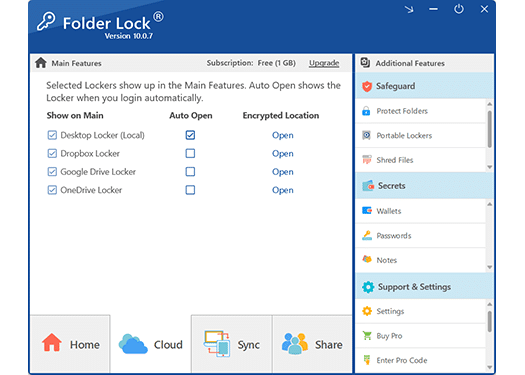
Folder Lock separates local encrypted storage from cloud-synced locker workflows. Desktop Locker is the local option, while the product also supports locker workflows tied to Google Drive, Dropbox, and OneDrive.
Why it matters here: an exported Google Doc can be archived in the location that fits your workflow without treating the ordinary live Doc itself as encrypted.
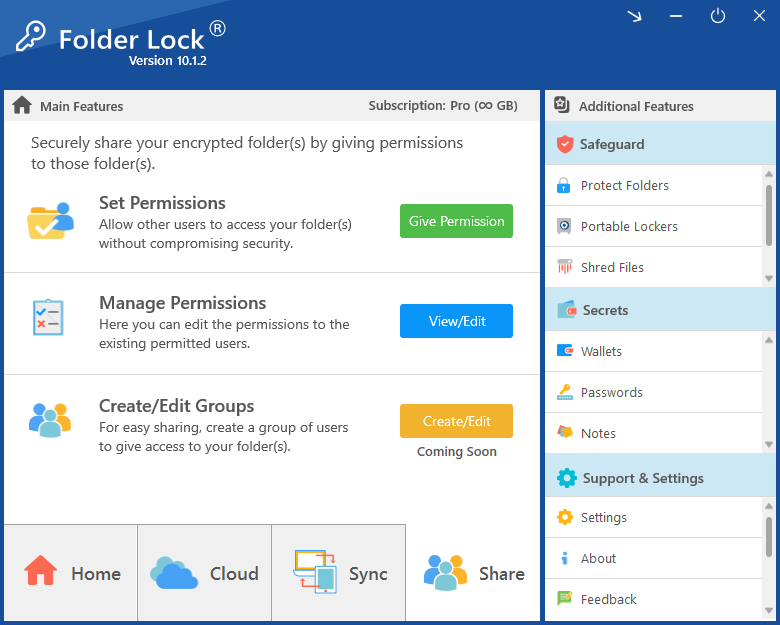
The product materials also describe syncing encrypted locker data across supported devices and sharing protected files with authorized Folder Lock users. That is a separate file-security workflow from Google Docs collaboration, where Viewer, Commenter, and Editor roles still control the live document.
Paid capabilities include broader locker and portable-locker options. They are relevant when files move beyond the browser and need protection on a device or removable storage.
Folder Lock also includes Windows-oriented protection functions such as locking or hiding data. For this guide, the encrypted locker is the more relevant feature because it provides a clear separation between the live Doc and its protected local copy.
Step by step
How to protect an exported Google Doc using Folder Lock
This workflow is for a copy you intentionally download. It does not modify or add a password to the live Google Doc.
Fix the live document’s permissions first. Set appropriate Viewer, Commenter, or Editor roles before creating the offline copy.
Export the file from Google Docs. Choose the format that fits the recipient or archive, such as PDF or Microsoft Word.
Create or open an encrypted locker in Folder Lock. Use the application’s encrypted storage rather than leaving the sensitive export in an ordinary folder.
Move the exported copy into the locker. Confirm the file appears inside the protected location and opens as expected while the locker is unlocked.
Choose local or cloud-backed storage deliberately. Use a Desktop Locker when the archive should stay on the PC, or a configured Google Drive Locker when you want the protected copy to participate in the product’s cloud-synced locker workflow.
Close the locker and test the result. Finish the session by closing the protected location, then confirm the sensitive export is no longer sitting in an ordinary unprotected folder.
The right protection depends on whether the file stays collaborative, becomes final, or leaves Google’s editor.
01
Team owner
Keep active authors as Editors and shift everyone else to Commenter or Viewer once their contribution is finished.
02
Policy publisher
Use Viewer access for the final link and keep a separate working copy for future revisions.
03
Client reviewer
Commenter often gives enough feedback capability without giving direct edit rights.
04
Local archivist
Export the final file and use encrypted storage when the downloaded copy contains sensitive information.
Technical deep dive
Where each security layer begins and ends
Google Docs permissions are tied to accounts, groups, links, and organization policy. This is the first layer to fix when an unintended person can edit.
Viewer, Commenter, and Editor determine what an authorized collaborator can do inside the document. They are not substitutes for device security or offline encryption.
Once a file is exported, Google Docs permissions no longer control that independent copy. The device, storage location, file format, and any encryption applied to it become relevant.
If you lose legitimate access, use the account recovery, ownership, administrator, backup, license, or vendor-support path appropriate to the layer involved. This guide does not provide bypass instructions.
Alternative approaches
Can a Google Doc be password protected?
Not as a normal live Google Doc with a separate document password. These options solve adjacent versions of the problem.
Best use here: encrypted storage for downloaded copies.
Strength: dedicated encrypted lockers and broader local protection tools.
Tradeoff: does not add a password prompt to the live Google Doc.
Native Google permissions
Best use here: protecting the live collaborative document.
Strength: no extra workflow and granular user roles.
Tradeoff: access is account-based, not a shared document password.
Protected archive or document format
Best use here: sending an exported file where the chosen format supports password-based protection.
Strength: recipient can receive a self-contained file.
Tradeoff: compatibility and protection quality vary, and the live Doc remains separate.
Make a Google Doc password protected
If you must keep the file editable in Google Docs, use account permissions rather than forcing a password workflow onto a product that does not natively work that way. If you can distribute a separate copy instead, export the document and choose an appropriate protected file or encrypted-storage method.
What Folder Lock does not change
Putting an exported DOCX or PDF into a Folder Lock locker does not revoke an Editor, narrow a shared link, or remove access inherited from a Google Drive folder. Treat the locker and the live document as two separate objects, and secure each one with the controls that actually govern it.
Pricing reference
Folder Lock Pricing: What You Get
The official Folder Lock 10 page currently shows a free tier and a Pro plan. Pricing can change, so confirm the checkout page before purchasing.
Free
$0
Useful for trying the locker workflow
The free tier includes a 1 GB locker allowance and syncing for two devices. Portable Lockers and Protect Folders are not part of that tier, so it is best suited to testing the core locker workflow before you depend on broader protection features.
Pro expands the workflow with unlimited locker size, syncing across five devices, unlimited sharing users, Portable Lockers, and Protect Folders. Those upgrades matter when exported files need broader protection; they still do not create a password prompt for the original live Google Doc.
Most problems come from a second access path, the wrong role, or a misunderstanding of what a specific restriction is designed to do.
Problem
Likely cause
Safe fix
Someone can still edit after you changed their role
They may have access through another account, group, editable link, or parent folder.
Review all access paths, not only the person’s direct entry.
The document is in a shared folder and permissions seem to return
The file is inheriting broader folder access.
Review the parent folder or move the file into a location with the intended access model.
A Viewer can still read sensitive content
Viewer is designed to allow reading.
Remove the user or restrict the audience if the person should not see the content at all.
People can download, print, or copy
Those advanced restrictions have not been enabled, or the person has a role not covered by them.
Review the owner sharing settings and understand that such controls are deterrents, not absolute anti-copy technology.
You cannot change sharing settings
You may not own the file or your organization may control sharing.
Ask the owner or administrator to make the change.
You forgot a Folder Lock password for your own locker
Local protection credentials are separate from Google account access.
Use the product’s legitimate recovery/support options, saved recovery information, license email, or vendor support. Do not use bypass tools.
You lost access to your own Google Doc
Wrong account, ownership transfer, organization policy, or removed access.
Check the account that owns the file, Drive activity, shared-with-you status, administrator help, and Google account recovery where applicable.
Your exported copy is protected but the original is still editable
The two files are independent.
Return to Google Docs and correct sharing permissions on the live source.
Owner-safe recovery
For any lockout, use proof-of-ownership paths: the correct signed-in account, administrator controls, saved recovery information, purchase/license records, backups, or official support. This guide deliberately does not provide password cracking or unauthorized-access methods.
Decision guide
Which method or tool is right for you?
Live team documentUse Viewer, Commenter, and Editor roles.Folder Lock fit: low. Keep the live workflow native.
Final shareable linkUse Viewer access and narrow General access.Folder Lock fit: low unless you also keep a local archive.
Sensitive offline archiveExport the final copy and store it securely.Folder Lock fit: high for encrypted local locker use.
External recipient needs a fileUse a suitable exported format and a secure delivery method.Folder Lock fit: situational; a protected archive or another file format may be simpler.
Need a literal live-Doc passwordGoogle Docs does not provide that normal workflow.Use restricted account access or change the distribution format.
What users value
Common themes in Folder Lock feedback
Rather than inventing testimonials, these editorial notes summarize recurring themes visible in public product feedback and the product’s current feature set.
“One place for sensitive local files”
Users often value having a dedicated protected location rather than scattering private exports through ordinary folders.
“Useful beyond one document type”
The broader appeal is that the same locker can hold PDFs, office files, photos, and other sensitive local data.
“Security adds workflow”
Extra protection also means extra steps. People who only need to stop Google Docs edits may find native permissions simpler.
“Know what layer you are securing”
The tool protects files and lockers on supported workflows; it does not replace Google’s live collaboration controls.
“One place for sensitive local files”
Users often value having a dedicated protected location rather than scattering private exports through ordinary folders.
“Useful beyond one document type”
The broader appeal is that the same locker can hold PDFs, office files, photos, and other sensitive local data.
“Security adds workflow”
Extra protection also means extra steps. People who only need to stop Google Docs edits may find native permissions simpler.
“Know what layer you are securing”
The tool protects files and lockers on supported workflows; it does not replace Google’s live collaboration controls.
Related tools
Other security tools from the same developer
These tools are developed by NewSoftwares.net, the same team behind Folder Lock. They address adjacent device, folder, and cloud-security needs rather than changing Google Docs permissions.
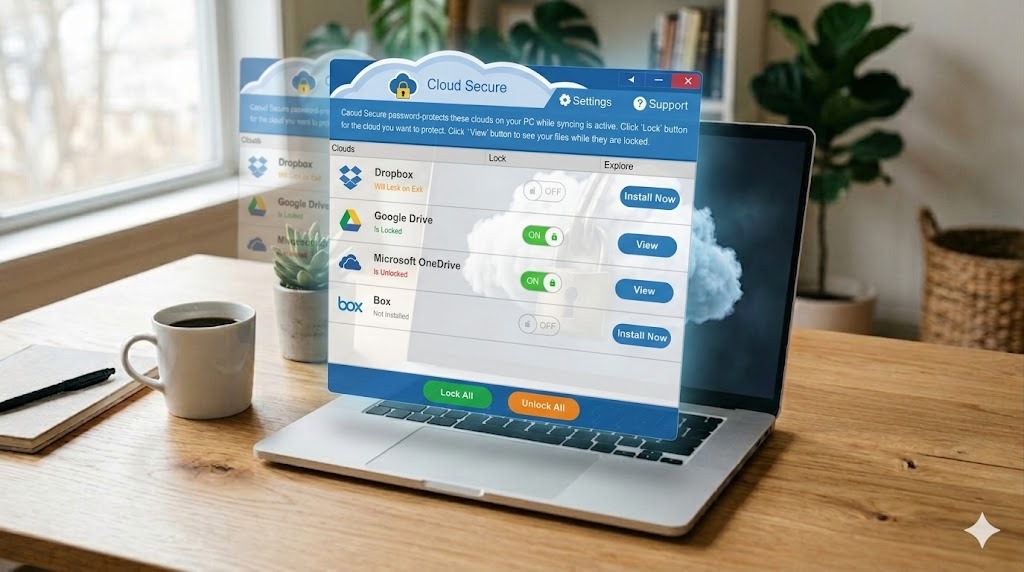
Cloud Secure
Locks access to supported cloud-storage apps and folders on a computer. Useful when your concern is the local cloud client rather than one Google Doc.
Frequently asked questions about locking Google Docs
Use the filters to narrow the questions. The exact Google Doc password and editing queries are kept here because they describe the same core intent.
How to lock a Google Doc from being edited?
Open Share, change people who should not edit from Editor to Viewer or Commenter, then review General access. If the file sits in a shared folder, confirm the folder does not grant broader editing access.
How to make a Google Doc read-only?
Give recipients Viewer access. If they should be able to leave feedback without changing the document, use Commenter instead.
How to lock a Google Doc for specific users?
Change only those users’ roles in the Share dialog. Keep trusted co-authors as Editors and assign Viewer or Commenter to everyone else according to need.
Can you password lock a Google Doc?
Google Docs does not provide a standard per-document password field for the live cloud document. Use restricted Google account sharing, or export a copy and protect that separate file.
Does Folder Lock password-protect the live Google Doc itself?
No. Folder Lock protects files inside its own locker and file-protection workflows. The live Google Doc continues to use Google account, link, and role permissions.
Can I store an exported Google Doc in Folder Lock’s Google Drive Locker?
Yes. You can export a separate copy and place that file in a configured Google Drive Locker so the copy follows Folder Lock’s encrypted cloud-storage workflow. This does not change access to the original online Doc.
How to lock a Google Doc so no one can edit it?
Remove or downgrade every other Editor and make sure no broad link, group, or parent folder grants edit rights. The owner will still retain owner-level control.
How to lock a Google Doc in a shared folder?
First check the access inherited from the shared folder. A file generally cannot be made meaningfully more restrictive while another inherited path still grants broader access, so adjust the folder structure or available limited-access controls as appropriate.
How to stop someone from editing a Google Doc?
Change that person from Editor to Commenter or Viewer. If they still appear able to edit, look for alternate access through another account, group, link, or folder.
How to mark a Google Doc as final?
You can label the filename or status as final for clarity, but enforce that state by changing unnecessary Editors to Viewer or Commenter and verifying link access.
How to lock formatting in a Google Doc?
There is no separate formatting-only lock for normal editors. Use view-only access, a PDF final copy, or a master document with comments/suggestions instead of broad direct editing.
How to set editing permissions in a Google Doc?
Open Share and assign Viewer, Commenter, or Editor to each collaborator. Then review General access and the advanced sharing controls available to the owner.
Can i make a google doc password protected?
Not as a normal live Google Doc with a separate password prompt. For the live document, restricted account sharing is the native access-control method.
Can i password protect a google doc?
You can protect an exported copy using a suitable protected file format or encrypted storage, but that is separate from the original Google Doc.
Can i password protect a google document?
If by “Google document” you mean a live Google Doc, use sharing permissions. If you mean a downloaded document file, the available password or encryption options depend on the exported format and software.
Can you make a password protected google doc?
You can create a protected offline copy, but the native online Doc continues to use Google account and sharing permissions rather than a separate document password.
How to Lock Google Doc with Password?
For a live Doc, restrict the audience and remove unnecessary edit rights. For a local copy, export it and then use a supported file-password or encrypted-storage method such as an encrypted locker.
Can i password protect a google sheet?
Google Sheets uses a similar account-and-sharing model, but Sheet-specific range and sheet protection creates a different intent. This guide does not repeat those steps so the Google Doc topic remains focused.
More on this topic
In-depth answers for common Google Doc lock searches
These short guides cover the remaining intent without sending you to placeholder pages.
How to lock a google doc file
Decide first whether “lock” means no edits or no access. For no edits, keep the file in Google Docs and use Viewer or Commenter. For no access, remove the person or narrow General access.
If you are talking about a downloaded DOCX or PDF instead of the live Google Doc, protect that copy separately. The permissions on one do not automatically secure the other.
Google doc lock file
There is no single “lock file” action that covers every use case. Google Docs treats editing and access as permissions attached to people, groups, links, and organization policy.
This is why a permission audit is more reliable than looking for a padlock icon. Check who can open, who can edit, how the link behaves, and where the file inherits access.
Protect google doc from editing
Use Viewer when the person only needs to read. Use Commenter when review is needed. Avoid leaving people as Editors merely because they once helped draft the document.
After changing roles, test from another account. Verification is particularly important for files moved between shared folders or teams.
Make google doc password protected
A password is not the native control for a live Google Doc. Restricted sharing is usually stronger operationally because each person authenticates with their own account instead of everyone sharing one secret.
If a recipient specifically requires a password-protected file, export a copy and choose a file format or encrypted-storage workflow that supports that requirement.
Password protect google docs document
Be precise about which object needs protection. If it is the live cloud document, adjust sharing. If it is an offline copy, protect the copy after export and remember to keep the original’s access settings correct.
How to lock google doc from editing
The shortest reliable path is Share → change Editor to Viewer or Commenter → review General access → test the result. If editing remains possible, look for inherited folder, group, or alternate-account access.
Our verdict
The bottom line
For a live Google Doc, the right way to “lock” it is to manage access: use Viewer or Commenter for people who should not edit, narrow General access, review inherited folder permissions, and verify the result from another account.
If your requirement is a literal password or encrypted storage, change the object you are protecting. Export a copy and secure that downloaded file separately. We recommend Folder Lock when you want an encrypted locker for those local copies, but not as a substitute for Google’s native permissions.